01
Install WorkBuddy
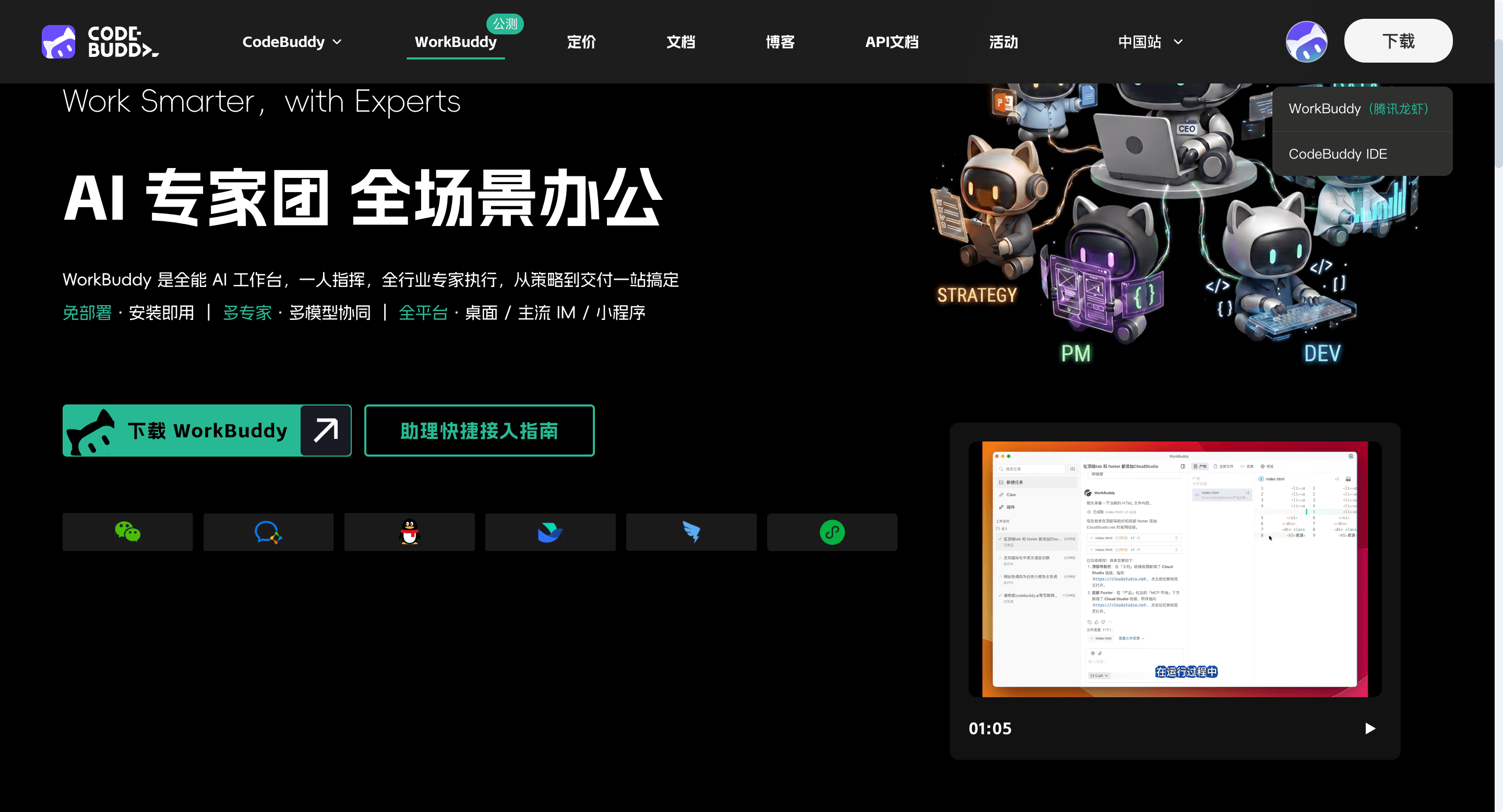
Open the official WorkBuddy site, download the client for your operating system, and sign in.
ZenovaOS MCP
Connect ZenovaOS AI to your preferred AI workspace and bring renewable-energy operations into familiar conversations for smoother data queries, issue analysis, and daily collaboration.
WorkBuddy connector
Make one simple connection, then use ZenovaOS AI directly in familiar WorkBuddy conversations to move renewable-energy questions into data and analysis.
Configuration
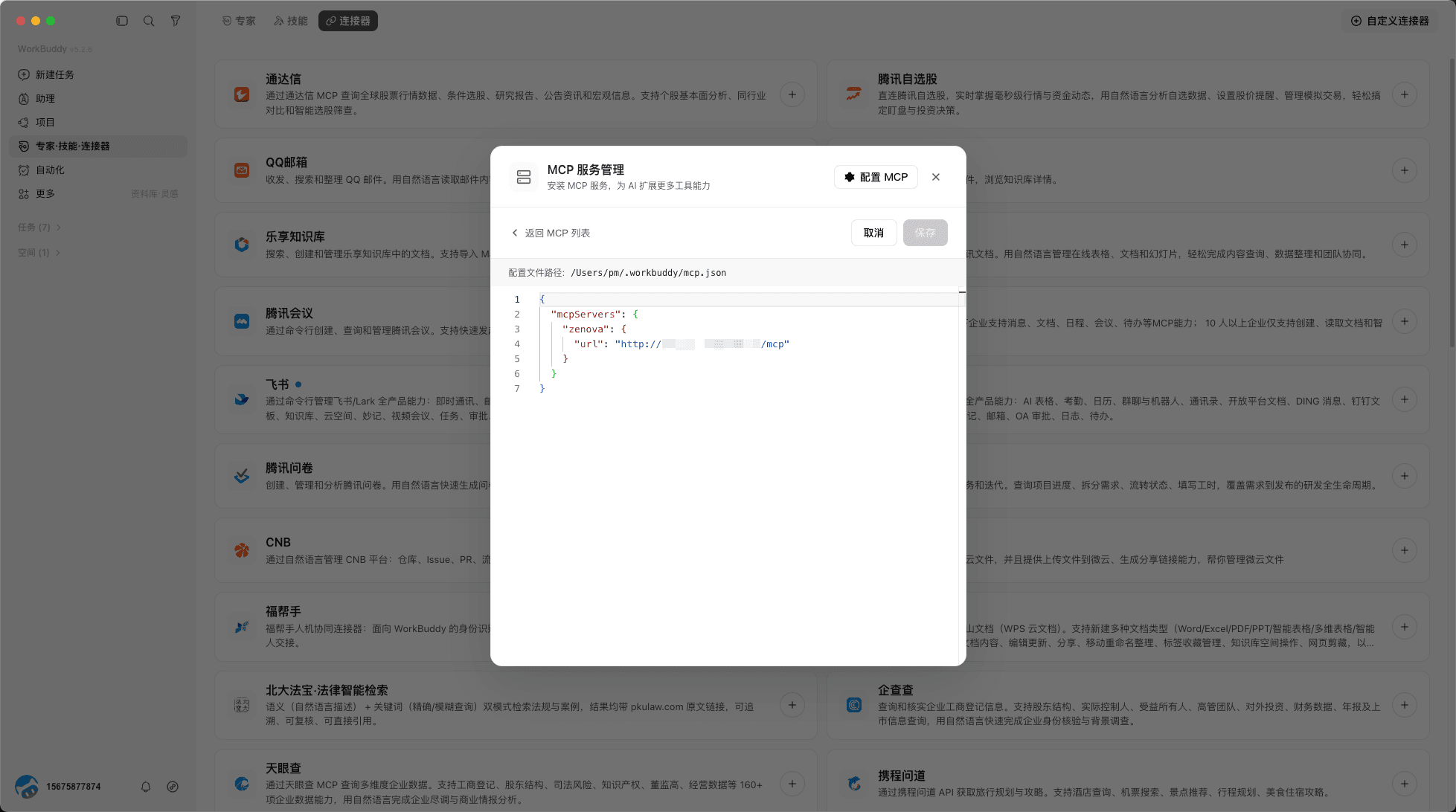
Add the MCP service URL provided by your administrator, then paste the template into WorkBuddy's Configure MCP page.
{
  "mcpServers": {
    "zenova": {
      "url": "MCP_SERVICE_URL"
    }
  }
}WorkBuddy setup guide
Open the official WorkBuddy site, download the client for your operating system, and sign in.
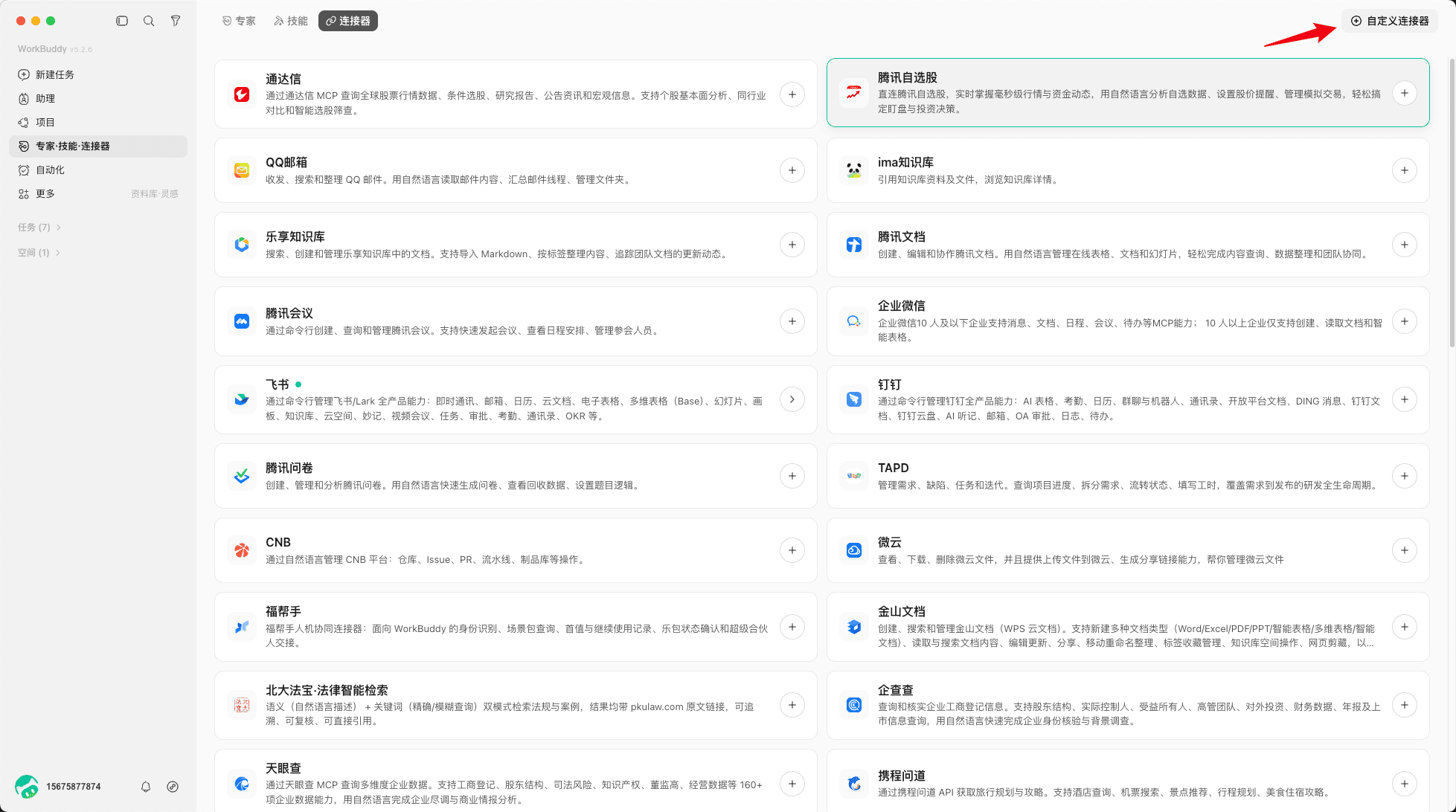
Open Experts, Skills & Connectors, choose Connectors, and click Custom Connector in the top-right corner.
Click Configure MCP, paste the configuration JSON, verify the format, and save.
Turn on the ZenovaOS AI service switch, then click Connect.
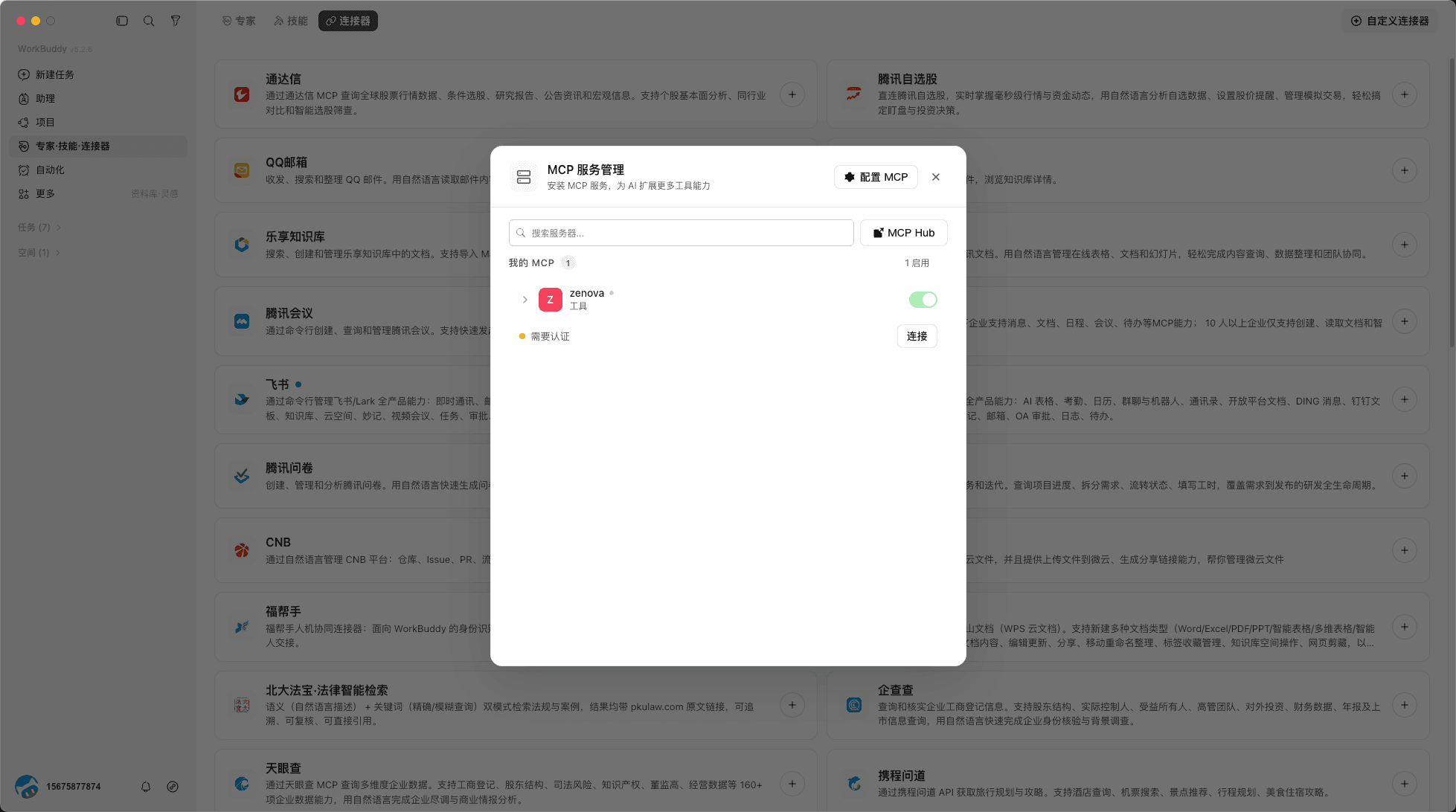
Close MCP service management and enter an operations question in WorkBuddy chat.
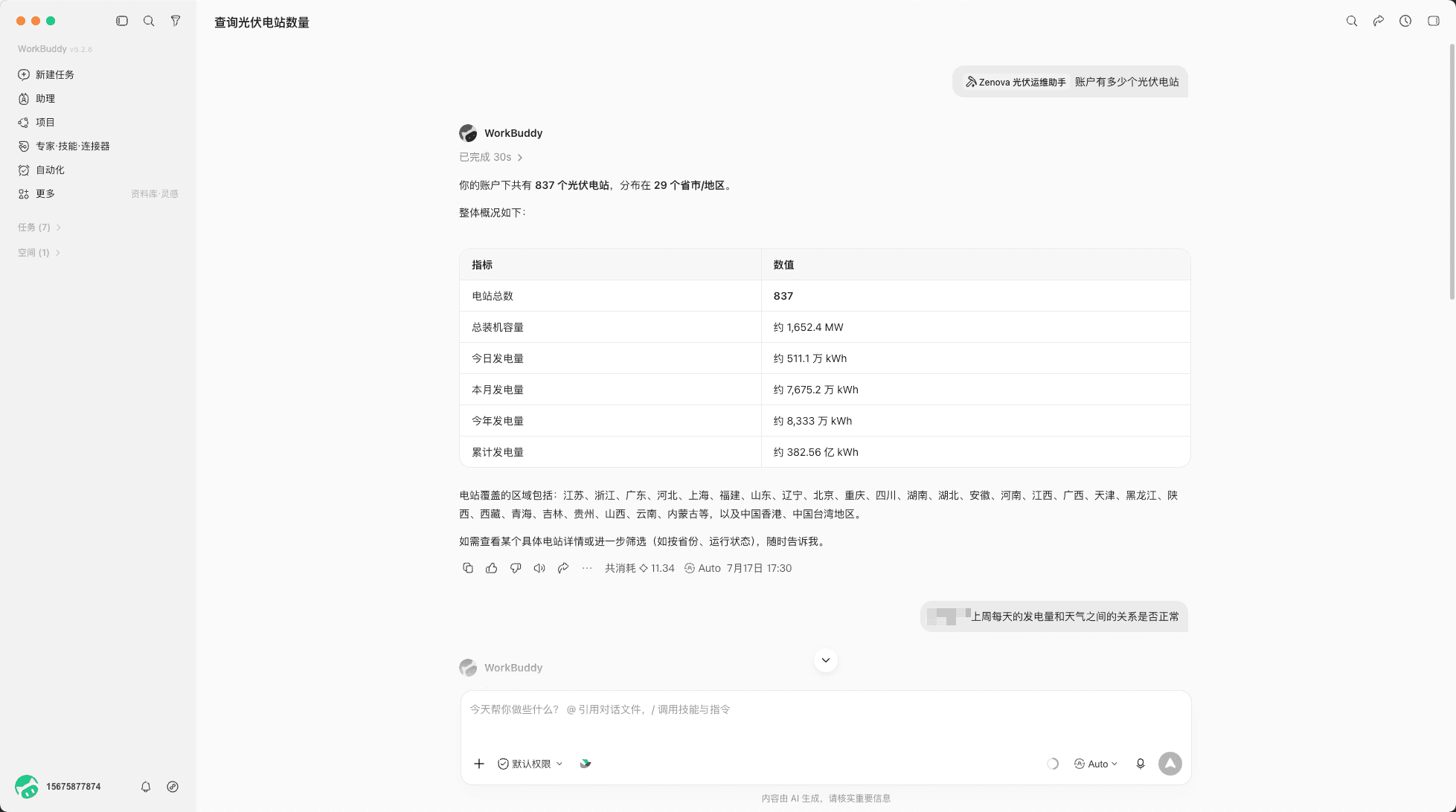
Step 03 · Verify
How many solar plants are in this account?
The connection is successful when the answer shows that the Zenova solar operations assistant was called and returns the account's plant count and related operations data.
Available capabilities
The WorkBuddy integration scope covers operational queries, file analysis, bill reconciliation, report generation, and asynchronous task management.
Find plants and devices by name, ID, or region, then query fleet overview, plant details, generation performance, and asset distribution.
Review device status, current and historical alarms, operating curves, and conditions such as offline, zero-output, or full-load operation.
Query tariffs, revenue, generation plans, storage operation, cleaning-robot tasks, procedures, and standard metric definitions.
Analyze PDF, Word, Excel, CSV, and image files, including OCR for scans and source locations for conclusions.
Extract bill fields, compare them with platform meter and billing data, and present differences, evidence, and items needing review.
Generate six operational report types and track progress, retrieve results, or cancel asynchronous tasks.
Security & permissions
ZenovaOS AI reuses the existing account and role model, returning only the plants and capabilities authorized for that user.
Every request checks the plants available to the account and returns only data within that authorized scope.
Queries, file analysis, bill reconciliation, and report generation are enabled by role and can be adjusted per account.
Account disablement, permission removal, or connector unlinking applies to the next request immediately.
FAQ
Ask your system administrator or project owner, then replace MCP_SERVICE_URL in the configuration template.
Confirm that the current network can access the MCP service and ask your administrator to check its status.
Open MCP service management, enable Zenova, and click Connect. After the service is connected, return to chat and ask your question.
Explicitly say “Use Zenova MCP” and request the tool name. Only a real tool call and server response count as a successful verification.
Use the Configure MCP page described here so the configuration can be checked, saved, and managed consistently.
Need help?
If you encounter a configuration or connection issue, submit the details to get setup support.